Frequently Asked Questions (FAQ)
Click on the according boxes below to learn more about the relevant topic:
How do I change my password?
To update your password:
1. After logging into NCCTRC eLearning, you will arrive onto the 'start' page. Click on the blue 'Visit profile' button in the top right-hand
corner (click on the image below to zoom-in on the image). Alternatively, you can click on this provided hyperlink to access the profile page.
3. The 'About me' window will appear. Click on 'Change Password' in the bottom left-hand corner of this panel.
4. Click on 'Password' under 'Enter your new password' and type in your new password, then click on the blue 'save' button in the bottom
right-hand corner to finalise your new password.
How do I enrol into a public course?
In NCCTRC eLearning, there are two types of courses.
Private: A private course can only be accessed if you have been approved to undertake the course and have been manually enrolled into the course by NCCTRC eLearning administration.
Public: A public course can be accessed by anyone in NCCTRC eLearning, as long as they have an account to log into NCCTRC eLearning.
To enrol into a public course:
1. After logging in, you will arrive by default to the 'start' page. Click on the 'Courses' button at the top of the screen.
2. On the 'Courses' page, you will see any courses that are publicly available for you to enrol into, such as 'Maximising Your Health,
Well-Being and Performance on Deployment' as well as 'The Safety of Vulnerable People in Crisis'. You should see a green 'Enrol' button
under each course. Click on this button to enrol into and launch that course.
I forgot my password and cannot login
If you have forgotten your password, there are two options:
1. On the Login screen, click on the green 'Forgot your password? at the bottom of the screen.
2. Alternatively, contact NCCTRC eLearning support by visiting the Contact and Support page to arrange a new, temporary password.
I have finished a course in NCCTRC eLearning but cannot download my Certificate of Completion
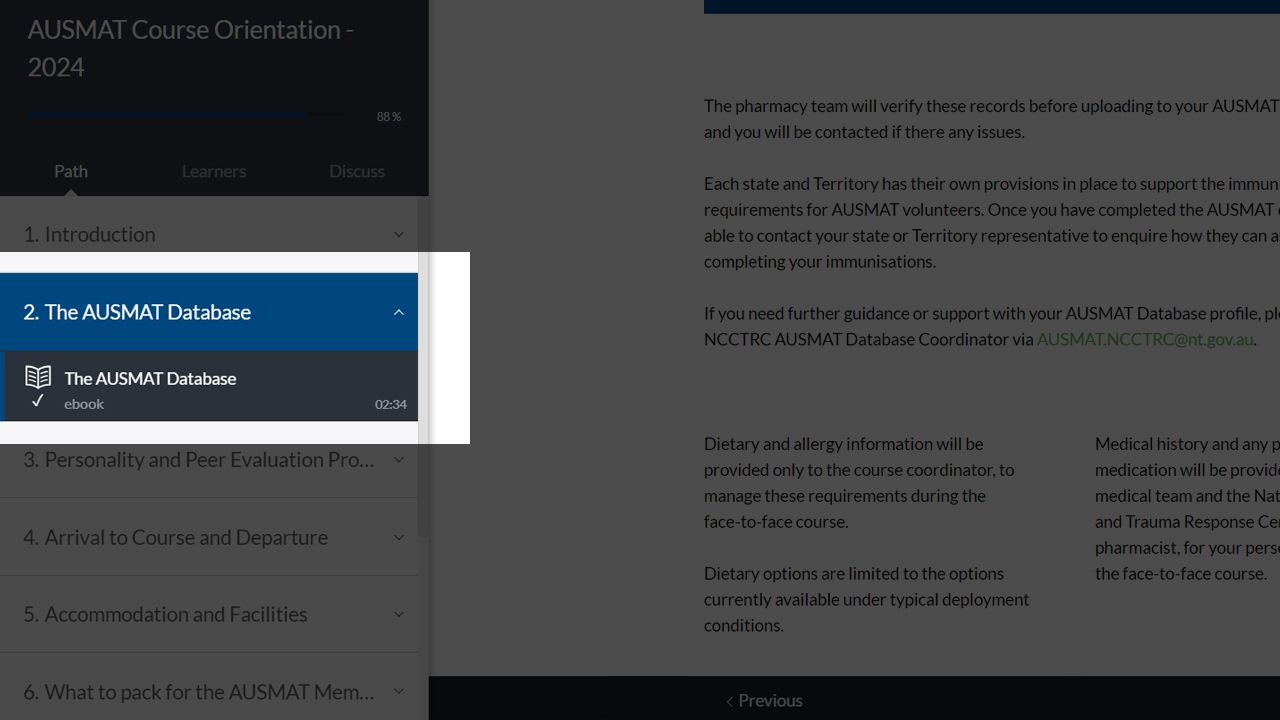
Courses in NCCTRC eLearning allow enrolled participants to go through the content of the course at their own pace, as slow or as fast as they like. It is possible that participants may accidentally skip a page.
When visiting a page, you must remain on that page for several seconds for the NCCTRC eLearning system to recognise that you have 'completed' the page.
In the example image above, there are tick icons under each of the page names in the left-hand panel (e.g., Acknowledgement of Country, Navigating NCCTRC eLearning etc). This means that the system has recognised that the participant has 'completed' that page.
All pages for every course must be 'completed' in order for the participant to be eligible to finish the course and download their Certificate of Completion.
If you are unable to download your Certificate of Completion, ensure that you have received a tick and 'completed' every page in that course.
I am having trouble with uploading a file
Some courses in NCCTRC eLearning may require enrolled participants to upload a file in order to proceed with the course.
For example, registered participants who have been approved to be enrolled into the AUSMAT Pre-Course Learning must upload a copy of their BSAFE Certificate of Completion from the United Nations Department of Safety and Security, in order to complete the AUSMAT Pre-Course Learning.
If you arrive to a screen that requires you to upload a file, do not click on the 'Next' button in the bottom right-hand corner.
Please follow the below instructions to successfully upload file(s) when required:
1. You can drag a file from your desktop or relevant folder onto where it says 'Drop files here', or alternatively you can click on the
green 'browse files' link to manually find your file.
2. You will now see the file that you are about to upload. This is an opportunity to ensure that you re uploading the correct file. If you
accidentally selected the wrong file, press the black and white 'X' in the top right-hand corner of the file's thumbnail image.
If you need to upload more files, you can click on the green '+ Add more' button in the top right-hand corner.
You can also type additional notes in the below 'Additional notes' text box.
When you are ready to submit your uploaded file(s), click on the blue 'submit >' button at the bottom of the page.
3. After clicking the blue 'submit >' button, you will be prompted with a final confirmation prompt.
Click on the black 'Submit' button to upload your file. Click on the white 'Cancel' button to return to the upload screen.
After uploading a file, please allow several seconds or minutes for your file to upload. How fast your file(s) upload will depend on the
speed and stability of your internet connection.
5. After successfully uploading your file(s), you will be presented with the above screen, advising on what file(s) you have submitted.
If everything is correct, click on the 'Next' button in the bottom right-hand corner to proceed with your course.
After submitting a file, please allow 24 to 48 hours for your file(s) to be reviewed and approved by an NCCTRC eLearning administrator.
If you experience technical difficulties with the above, visit the Contact and Support page.
The course I am enrolled into is not loading and I am receiving an error message
1. Ensure that your internet connection is stable. You may need to temporarily turn off anything downloading in the background, such as
operating system updates, software updates etc. If using a shared wi-fi connection, ensure that other nearby users are not downloading
large files.
2. If the error message reads "404 error! Uh oh! This page is lost in space!" Contact NCCTRC eLearning support as soon as reasonably
possible via Admin.NCCTRC@nt.gov.au.
I cannot download my BSAFE Certificate of Completion
NCCTRC eLearning administration do not have administration access to the systems used by the United Nations Department of Safety and Security (UNDSS) for their BSAFE course.
As such, if you have completed the BSAFE course but are having difficulties with receiving your BSAFE Certificate of Completion, you will need to contact the UNDSS support team via e-mail: UNDSS.Learning@UN.org.
Alternatively, you can visit the UNDSS 'Contact us' page.
If you experience any technical difficulties with the BSAFE course, please contact the UNDSS support team.
Northern Territory Government (NTG) staff only -
I am having problems accessing mandatory training (MyLearning)
NCCTRC eLearning administration do not have administration access to MyLearning, the Learning Management System (LMS) used by the Northern Territory Government.
As such, if you are an NTG employee and are having technical issues with MyLearning, please contact the MyLearning support team via:
Phone: 08 8922 7022
E-Mail: AGSeLearning.DCDD@nt.gov.au
NTG staff only - I am having problems with my computer's hardware, software, internet etc.
If you are an NTG employee and are experiencing any technical difficulties with NTG hardware, software etc. please contact NTG Helpdesk (the NTG ICT Service Centre) on:
Phone: 08 8924 4355 or 1800 000 254
E-Mail: Service.Centre@nt.gov.au
If your question cannot be answered here, please visit the Contact and Support page.
Care and Trauma Response Centre
Powered by LearnWorlds